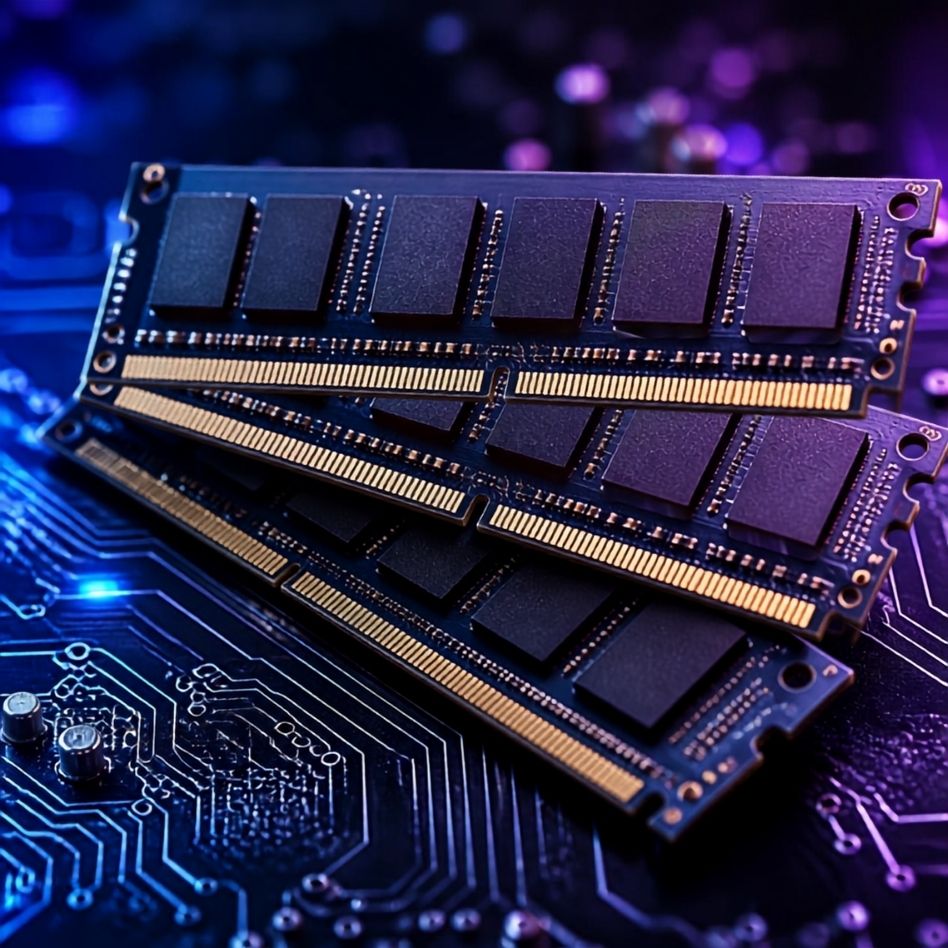
What Is RAM? Types of RAM Explained for Beginners
Introduction
RAM (Random Access Memory) is one of the most important components of a computer. It temporarily stores the data and programs that your processor is actively using. The more RAM your system has, the more applications it can handle simultaneously without slowing down.
Whether you're buying a new PC, upgrading your existing one, or simply learning about computer hardware, understanding RAM is essential.
What Is RAM?
RAM stands for Random Access Memory. It is a type of temporary memory that stores information while your computer is running.
Unlike a hard drive or SSD, RAM does not permanently save data. Once you shut down or restart your computer, all the data stored in RAM is erased.
Think of RAM as your computer's short-term memory. It allows your processor to quickly access the data it needs without waiting for slower storage devices.
How Does RAM Work?
Whenever you:
- Open a web browser
- Play a game
- Edit photos
- Watch videos
- Use office applications
The required data is loaded from your SSD or HDD into RAM. Since RAM is much faster than storage devices, your CPU can process information quickly.
The more RAM available, the smoother your computer performs while multitasking.
Types of RAM
1. DRAM (Dynamic RAM)
Dynamic RAM stores data using tiny capacitors that require constant refreshing.
Advantages
- Affordable
- High storage capacity
- Widely used in computers
Disadvantages
- Slightly slower than SRAM
- Requires continuous refresh cycles
2. SRAM (Static RAM)
Static RAM stores data without needing frequent refreshing.
Advantages
- Very fast
- Low latency
- Used in CPU cache memory
Disadvantages
- Expensive
- Lower storage capacity
3. SDRAM (Synchronous DRAM)
SDRAM operates in synchronization with the processor clock, improving performance over older DRAM technologies.
4. DDR SDRAM
DDR stands for Double Data Rate. Each new generation offers better speed and efficiency.
DDR1
- Introduced around 2000
- Now obsolete
DDR2
- Faster than DDR1
- Lower power consumption
DDR3
- Popular in older desktop and laptop computers
- Improved speed and efficiency
DDR4
- Common in modern PCs
- Better performance
- Lower voltage
- Higher capacity
DDR5
- Latest consumer RAM technology
- Faster speeds
- Greater bandwidth
- Better multitasking
- Improved energy efficiency
Laptop RAM vs Desktop RAM
| Desktop RAM | Laptop RAM |
|---|---|
| DIMM Module | SO-DIMM Module |
| Larger Size | Smaller Size |
| Used in Desktop PCs | Used in Laptops |
RAM Capacity Guide
| RAM Size | Best For |
|---|---|
| 4 GB | Basic browsing and office work |
| 8 GB | Students and everyday users |
| 16 GB | Gaming, programming, multitasking |
| 32 GB | Video editing and professional work |
| 64 GB+ | Workstations, servers, virtualization |
RAM Speed
RAM speed is measured in MHz (Megahertz).
Common DDR4 speeds:
- 2400 MHz
- 2666 MHz
- 3000 MHz
- 3200 MHz
- 3600 MHz
Common DDR5 speeds:
- 4800 MHz
- 5200 MHz
- 5600 MHz
- 6000 MHz
- 6400 MHz and above
Higher speeds generally improve system responsiveness, especially when paired with a compatible processor and motherboard.
Signs You Need More RAM
You may need a RAM upgrade if:
- Your computer becomes slow while multitasking.
- Applications frequently freeze.
- Browser tabs reload often.
- Games stutter.
- Video editing software runs slowly.
- Your system displays "Out of Memory" errors.
How to Choose the Right RAM
Before purchasing RAM, check:
- Motherboard compatibility
- Processor support
- DDR generation (DDR4 or DDR5)
- Maximum supported capacity
- RAM speed
- Number of available RAM slots
Always buy RAM that matches your motherboard's supported specifications.
Advantages of More RAM
- Faster multitasking
- Better gaming performance
- Faster application loading
- Improved productivity
- Smoother video editing
- Better virtualization performance
Frequently Asked Questions (FAQs)
Is more RAM always better?
More RAM helps when your workload requires it. For most users, 8 GB to 16 GB is sufficient, while professionals may benefit from 32 GB or more.
Can I mix different RAM sizes?
Yes, but using different capacities, speeds, or timings may reduce performance and compatibility.
Does RAM increase FPS in games?
Adding RAM can improve gaming performance if your system is running out of memory. However, beyond the required amount, the graphics card and processor have a greater impact on FPS.
Can I upgrade RAM later?
In most desktop computers and many laptops, yes. Always check your device's upgrade options before purchasing.
Conclusion
RAM is a critical component that directly affects your computer's speed and responsiveness. Understanding the different types of RAM, capacities, and speeds will help you choose the right memory for your needs. Whether you're building a new PC or upgrading an existing one, selecting compatible RAM ensures better performance and a smoother computing experience.