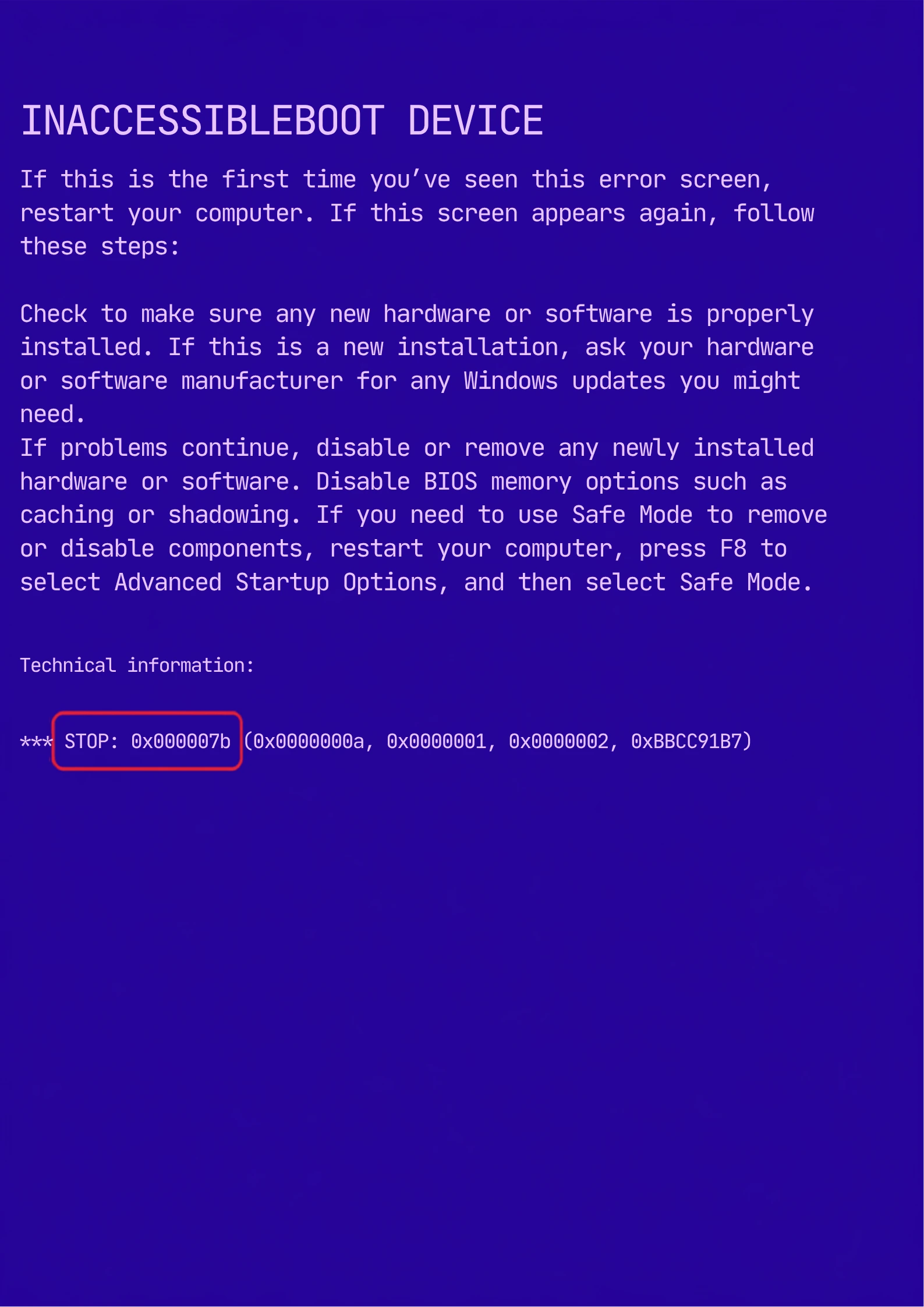
How to Fix 0x0000007B INACCESSIBLE_BOOT_DEVICE Error in Windows
The 0x0000007B INACCESSIBLE_BOOT_DEVICE error is a common Blue Screen of Death (BSOD) that appears when Windows cannot access the drive containing the operating system. This usually happens after changing hardware, updating BIOS settings, installing Windows incorrectly, or due to a failing storage device.
Fortunately, this error can often be fixed without reinstalling Windows.
What Causes the 0x0000007B Error?
The most common causes include:
- Corrupted Windows boot files
- Incorrect BIOS SATA mode (AHCI, IDE, or RAID)
- Damaged HDD or SSD
- Loose SATA or NVMe connections
- Corrupted storage drivers
- Malware infection
- Failed Windows update
- Cloned or migrated Windows installation issues
Symptoms
You may notice:
- Blue Screen displaying INACCESSIBLE_BOOT_DEVICE
- Windows stuck in a boot loop
- Automatic Repair keeps loading
- PC restarts continuously
- Windows logo appears but never loads
Solution 1: Check Storage Connections
- Turn off your computer.
- Disconnect the power cable.
- Check that the HDD, SSD, or NVMe drive is properly connected.
- Reconnect the cables securely.
- Restart your PC.
Solution 2: Verify BIOS Storage Mode
- Restart your PC and enter the BIOS/UEFI (usually by pressing F2, Delete, or F12).
- Locate the SATA Configuration settings.
- Ensure the correct mode (AHCI, IDE, or RAID) is selected.
- Save changes and restart.
Tip: If the error appeared after changing BIOS settings, restore the previous storage mode.
Solution 3: Run Startup Repair
- Boot from a Windows installation USB.
- Click Repair your computer.
- Select Troubleshoot → Advanced Options → Startup Repair.
- Allow Windows to repair the boot files automatically.
Solution 4: Repair Boot Files
Open Command Prompt from the Windows Recovery Environment and run the following commands one by one:
bootrec /fixmbr
bootrec /fixboot
bootrec /scanos
bootrec /rebuildbcd
Restart the computer after the process is complete.
Solution 5: Check the Disk for Errors
In Command Prompt, run:
chkdsk C: /f /rReplace C: with your Windows drive if necessary.
This command scans for bad sectors and repairs file system errors.
Solution 6: Check Your SSD or HDD Health
If your storage drive is failing, Windows may not be able to access the boot partition.
Signs of a failing drive include:
- Clicking noises (HDD)
- Extremely slow boot
- Frequent freezes
- SMART warnings
- Repeated boot failures
Replace the drive if it shows signs of hardware failure.
Solution 7: Uninstall Recent Windows Updates
If the issue started after a Windows update:
- Boot into Windows Recovery.
- Go to Troubleshoot → Advanced Options → Uninstall Updates.
- Remove the latest quality or feature update.
- Restart the PC.
Solution 8: Scan for Corrupted System Files
Open Command Prompt in Recovery Mode and run:
sfc /scannow /offbootdir=C:\ /offwindir=C:\WindowsThis repairs damaged Windows system files.
Prevention Tips
- Keep regular backups of important files.
- Avoid changing BIOS storage settings unless necessary.
- Update storage drivers from trusted sources.
- Monitor SSD/HDD health regularly.
- Shut down your computer properly.
Conclusion
The 0x0000007B INACCESSIBLE_BOOT_DEVICE error usually indicates that Windows cannot access the boot drive. In most cases, checking storage connections, correcting BIOS settings, repairing boot files, or replacing a failing drive will resolve the issue. If none of these methods work, backing up your data and performing a clean Windows installation may be the final solution.